SCA / MFA Scenarios
Strong Customer Authentication (SCA) / Multi Factor Authentication (MFA) is a secure process of authentication which requires more than one authentication techniques chosen from independent categories of credentials. SCA / MFA combines two or more types of authentication to provide a better and secure way of authenticating Infinity users to ensure safe banking for the Bank / Customers.
Few considerations:
- The bank staff (administrator) sets the SCA / MFA scenario (triggers) and preferences for all customer-facing applications (Retail Banking, Small Business Banking etc.) from Spotlight.
- SCA / MFA can be triggered for transactions (money movement-related) or for other specific actions (user profile updates) by the customer in the application, for example:
- Transactional signing – transfer or payment.
- General signing – all non-monetary changes.
- Unknown or suspicious device.
- Suspicious location outside of normal operation or travel.
As a bank staff (administrator or a role with necessary permissions), use the feature to define various trigger points (scenarios) that will present the customer to validate the customer's identity and avoid fraudulent activity.
Menu path: Security & Authentication > SCA Scenario
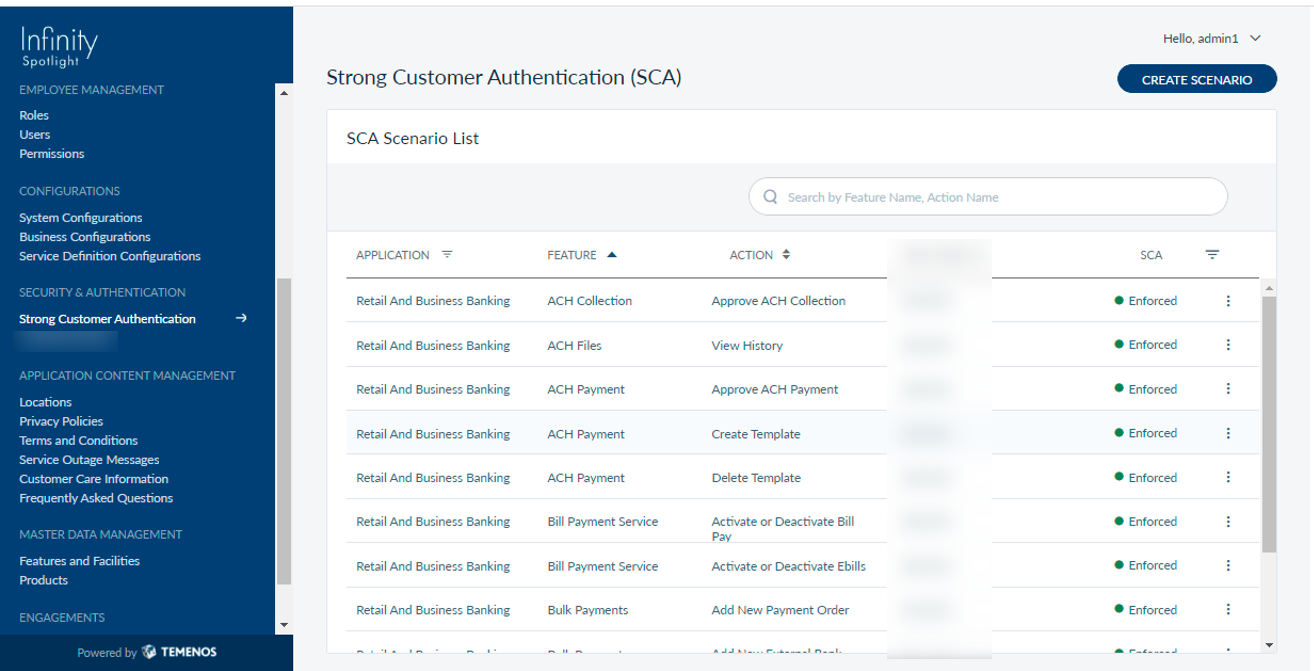
The app displays the Strong Customer Authentication screen with a list of scenarios already defined with the following details: Application, Feature, Action, SCA tab.
NOTE: For integrating with a third-party Authentication provider additional processes might be involved.
As a bank staff (administrator or a role with necessary permissions), you can do the following:
View an SCA Scenario
All the SCA scenarios are listed in a tabular format with the following details:
- Application - Name of the application to which the SCA is applicable. For example, Retail Banking, Business Banking and more.
- Feature - Displays the name of the application feature to which the SCA is related.
- Action - Displays the type of action related to the Feature to which the SCA is applicable.
- SCA tab - Displays the SCA option to Enforce / Not Enforce with regards to the feature.
Menu path: Customer Management > Security & Authentication > SCA Scenario
As a bank staff (administrator), you can do the following from here:
- View the list of authentication scenarios already created with status. By default, the scenarios created for all customer-facing applications are displayed.
- Filter
 the scenarios by application - Business Banking, Consumer Lending, Customer Onboarding, and Retail Banking.
 - Search for a particular scenario by transaction type using the search box.
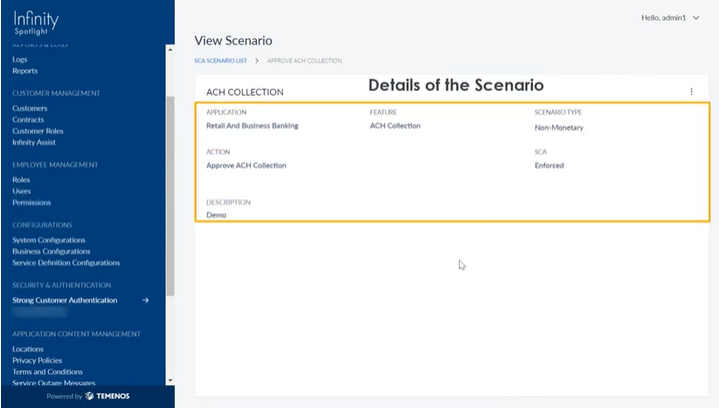
- Click any scenario and view the description.
- Click Create Scenario to add a scenario.
- Edit the required scenario from the context
 menu.
menu. - Delete the required scenario from the context menu.
Select any scenario to view more details.
Create an SCA Scenario
Use the feature to create an SCA scenario.
Menu path: Security & Authentication > SCA Scenario > Create Scenario
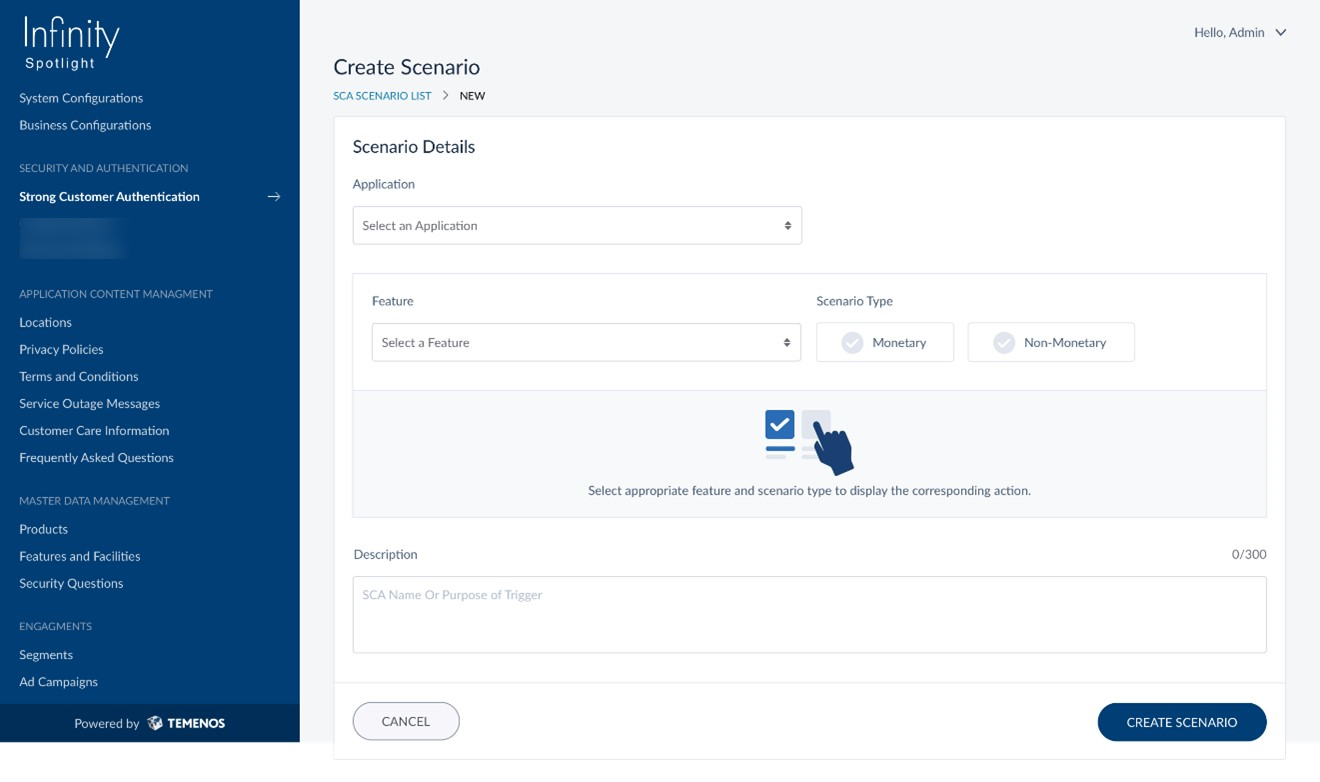
Add the following details. All fields are mandatory unless specified otherwise.s
Scenario Details
- Application: Scenarios are to be set up application-wise. Select an application from the list for which the scenario is created. The applications are:
- Business Banking
- Consumer Lending
- Customer Onboarding
- Retail Banking.
- Retail and Business Banking
- Scenario Type: Select the scenario type as transactional (money movement) or non-transactional (user profile update).
- Monetary - Select the transaction type and frequency from the respective lists.
- Action - Select all available money movement transactional services for the selected application from the list.
- Non Monetary - Select the Activity Type from the list.
- Monetary - Select the transaction type and frequency from the respective lists.
- Description: Enter the unique scenario description in the box. Alphanumeric characters up to 100 characters are accepted. Duplicate and identical names cannot be created.
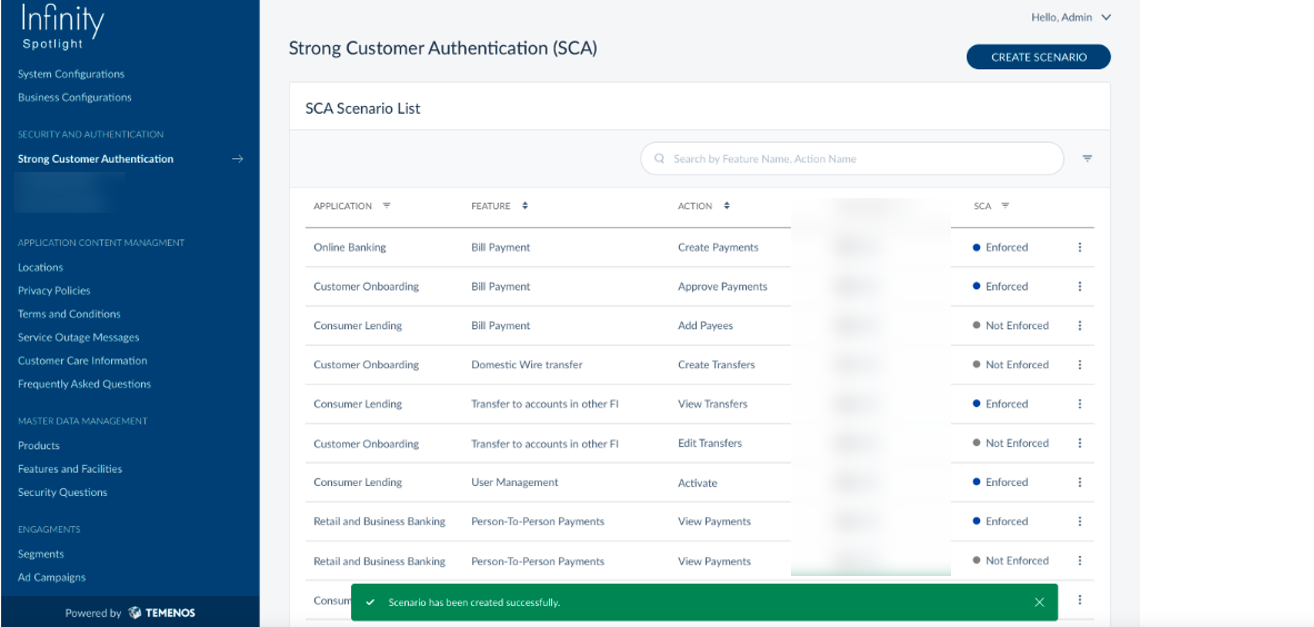
After adding all the details, click on the Create Scenario button. A pop-up message appears.
Following is the list of SCA scenarios that are available out of the box:
| Scenario | Description |
|---|---|
| INTRA_BANK_FUND_TRANSFER_CREATE | Create Intra Bank Fund Transfer |
| USERNAME_UPDATE | Profile Management -Username Update |
| CARD_MANAGEMENT_ACTIVATE_CARD | Card Management- Lock Card |
| CARD_MANAGEMENT_REPLACE_CARD | Card management-replace |
| DOMESTIC_WIRE_TRANSFER_CREATE | Wire transfer |
| CARD_MANAGEMENT_UNLOCK_CARD | Card management-unlock |
| INTER_BANK_ACCOUNT_FUND_TRANSFER_CREATE | Interbank transfer |
| INTERNATIONAL_WIRE_TRANSFER_CREATE | OTP |
| CARD_MANAGEMENT_CHANGE_PIN | Card Management-Change Pin |
| BILL_PAY_CREATE | Retail Banking - Bill Pay |
| PAY_MULTIPLE_BENEFICIARIES_CREATE_TRANSFER | Pay Multiple Beneficiaries |
| CARD_MANAGEMENT_CANCEL_CARD | Card Management-Cancel Card |
| CARD_MANAGEMENT_LOCK_CARD | Card Management- Lock Card |
| PASSWORD_UPDATE | Profile Management Password Update |
| INTERNATIONAL_ACCOUNT_FUND_TRANSFER_CREATE | International transfer |
| TRANSFER_BETWEEN_OWN_ACCOUNT_CREATE | Create internal transfer |
| LOGIN | Login |
Edit an SCA Scenario
Use the feature to edit the details of the selected SCA scenario.
Menu path: Security & Authentication > SCA Scenario > Edit option on context menu
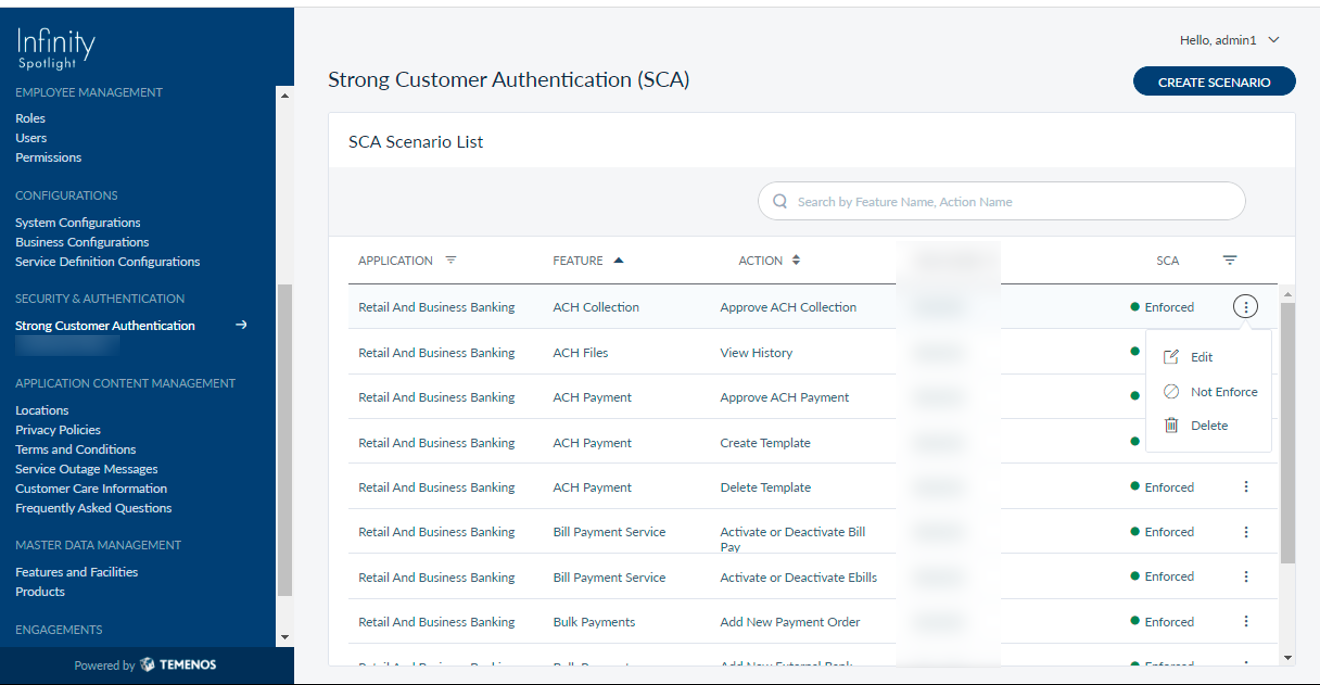
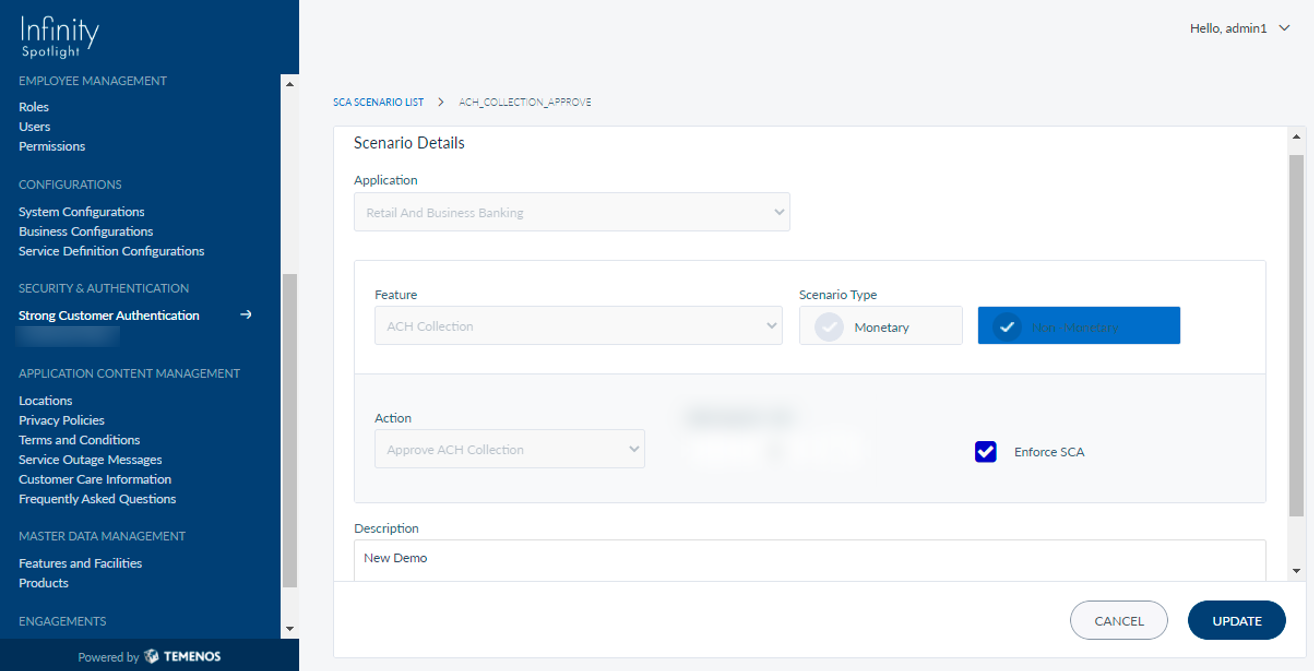
The edit screen is similar to the create a scenario screen with provision to modify the details.
All validations applicable while creating an SCA scenario are applicable while editing.
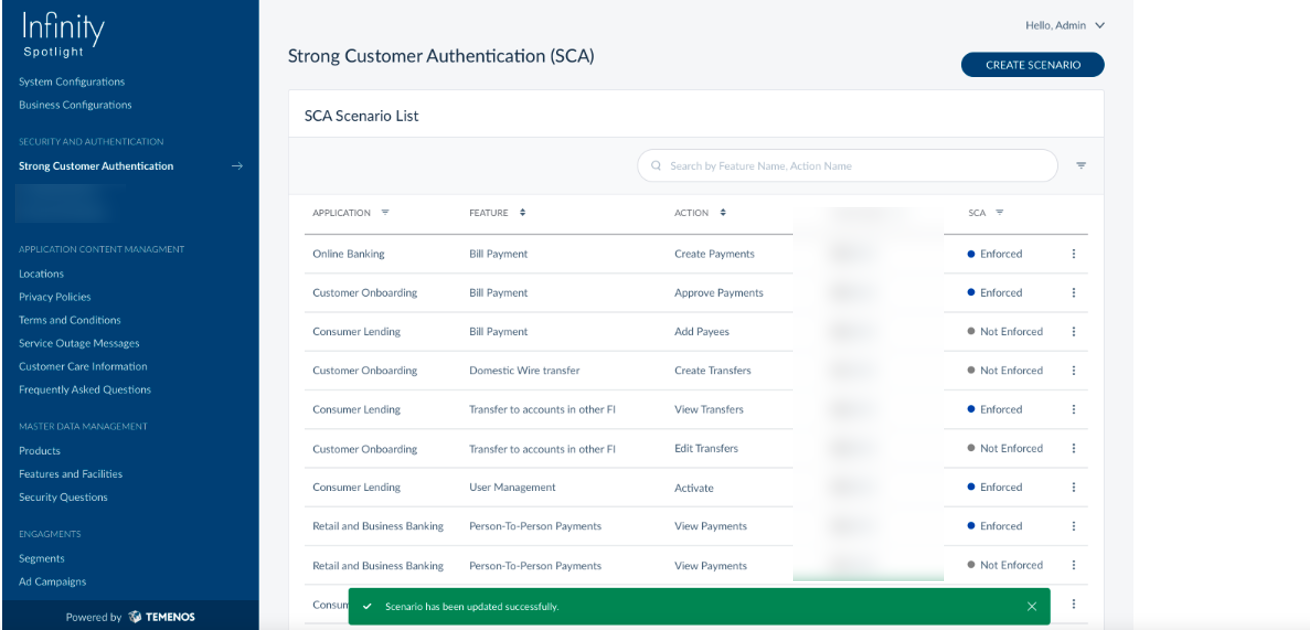
Make the required changes and click Update to save the details.
Delete an SCA Scenario
Use the feature to delete the details of the selected SCA scenario.
Menu path: Security & Authentication > SCA Scenario > Delete option on context menu
Delete the required scenario from the context menu
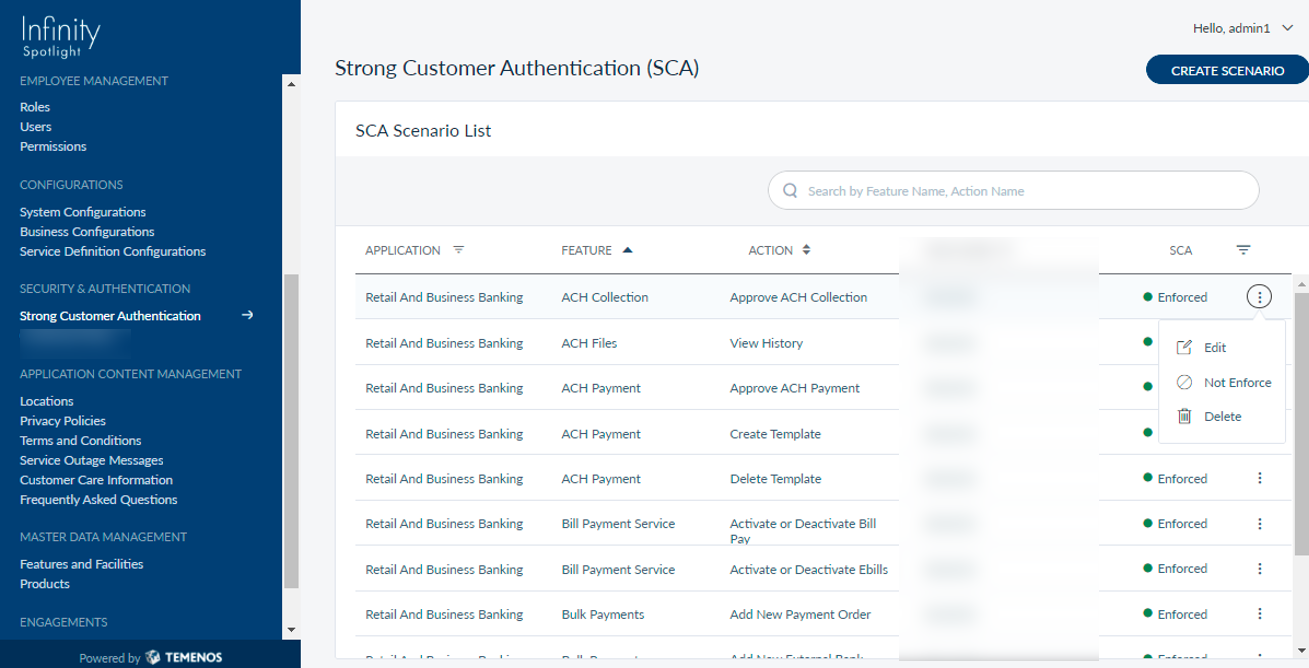
Click on the Delete button. A pop-up appears.
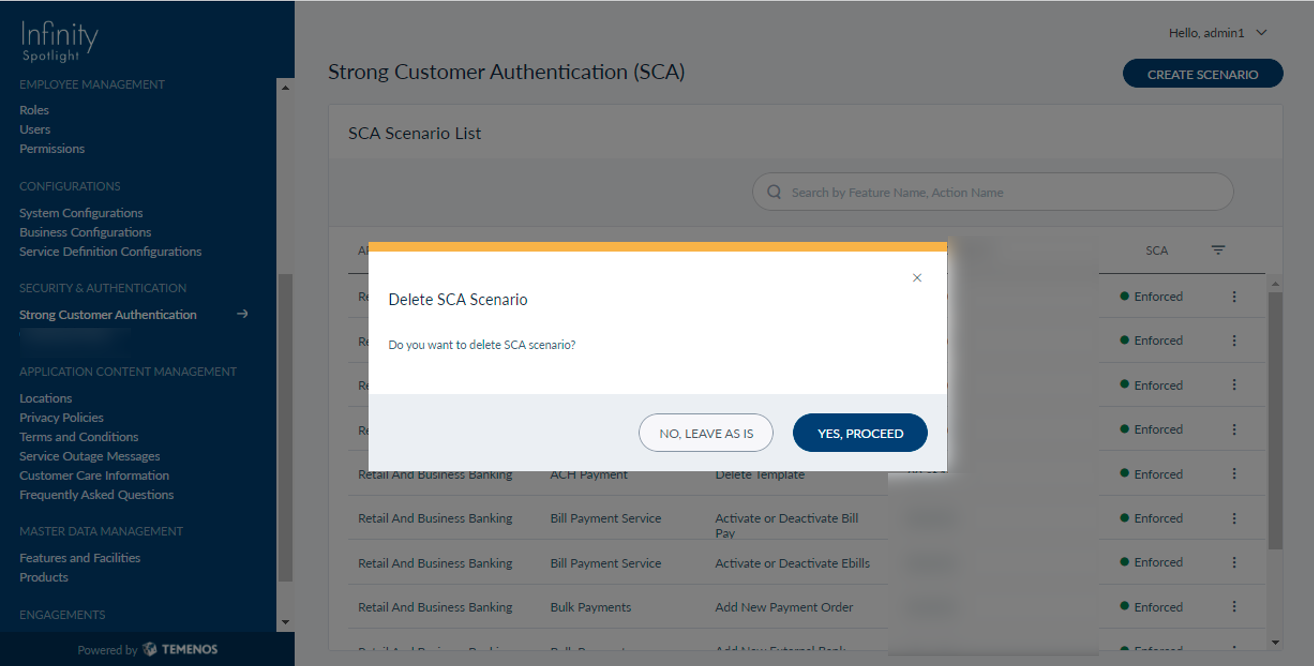
By clicking Yes, Proceed button, the scenario is deleted.
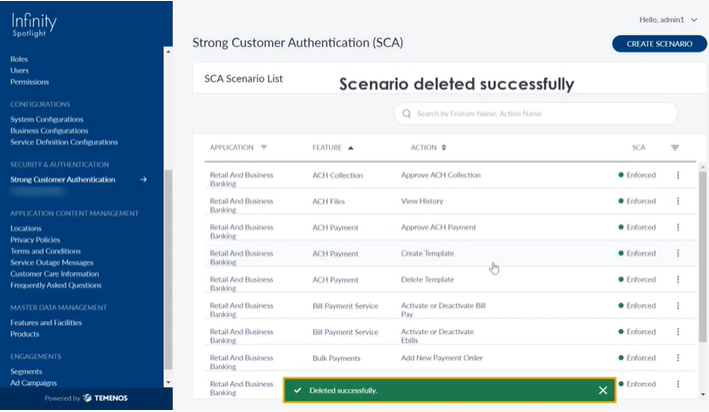
- The bank can Enforce/Not Enforce [Active/InActive] SCA for the end-user for dynamically setting up the authentication.
- Based on the authentication vendor preference/support the Risk-Score based SCA flow will be enabled.
Here is a small video that explains SCA Components-Basic flow. It helps the underlying process to determine the step-up authentication required or not for the given feature used in the Online Banking and Mobile Banking.
Here is a small video that explains SCA- Risk-Based Evaluation flow. SCA Components adaptive risk-based score evaluation help the underlying process to determine the step-up authentication for the given feature used in Online Banking and Mobile Banking.
In this topic
